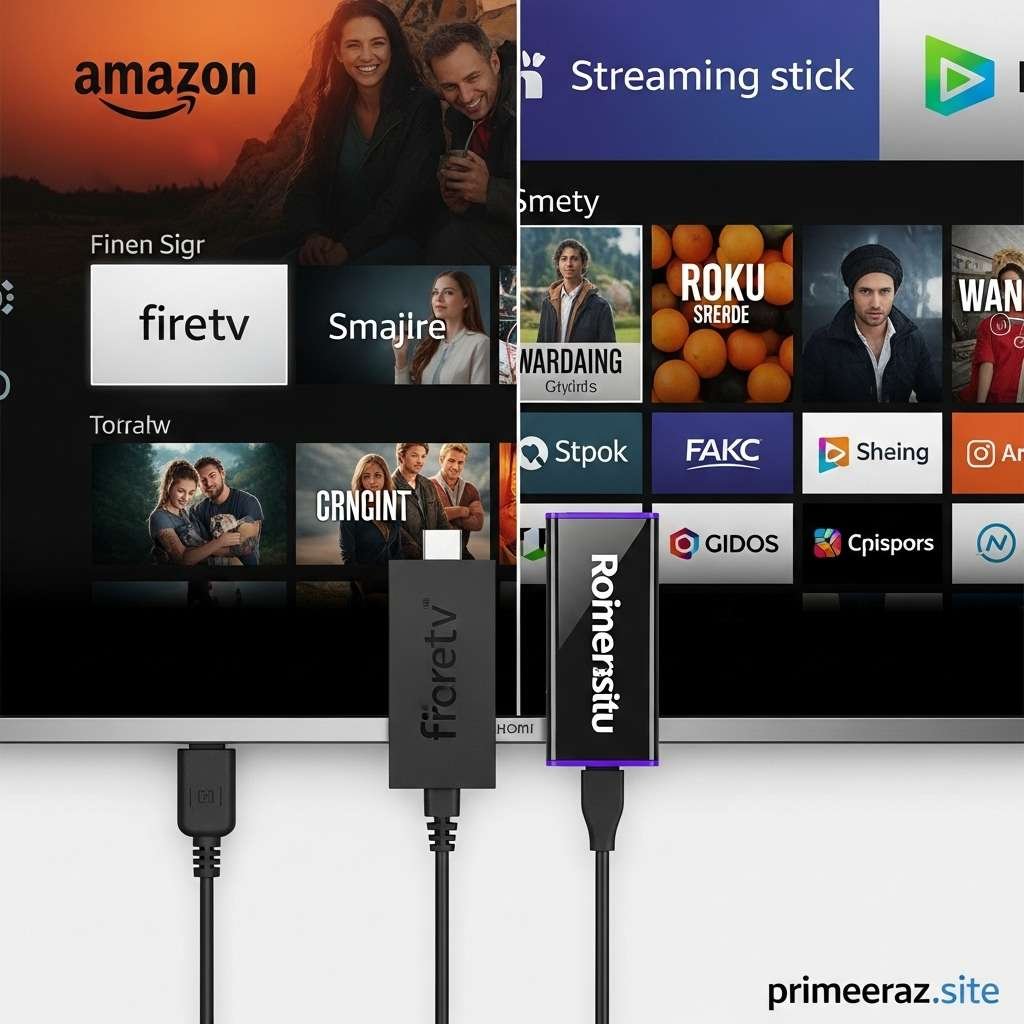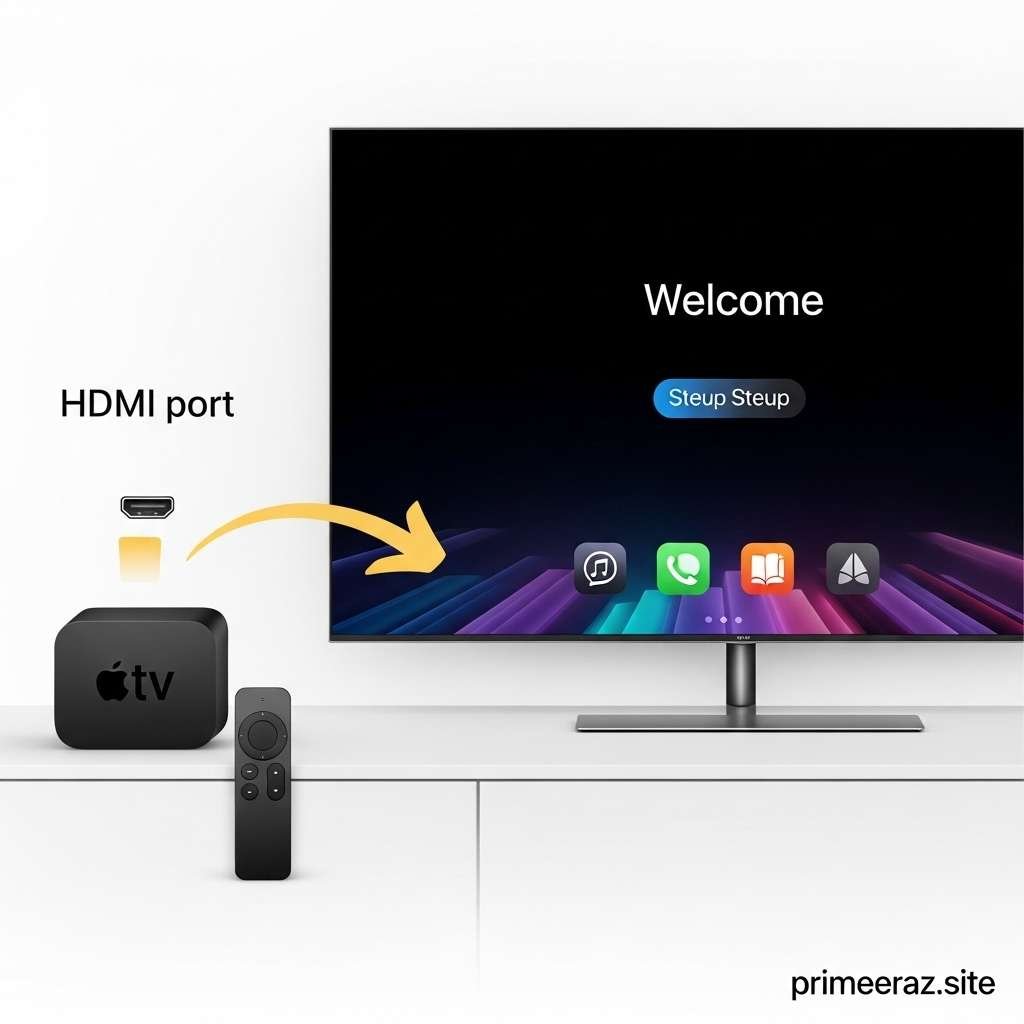
Apple TV is a powerful streaming device that allows you to watch movies, TV shows, and play games on your television. If you’re new to Apple TV, the setup process may seem intimidating, but it’s actually straightforward. This guide walks you through every step to get your device up and running quickly.
Table of Contents
What You Need Before You Begin
Before starting the setup process, make sure you have:
- Apple TV device (HD, 4K, or 4K Max)
- HDMI cable (to connect to your TV)
- Wi-Fi connection or Ethernet cable
- Apple ID (needed for apps, purchases, and iCloud)
- Apple TV Remote (included with the device)
- Power source
Having these ready will ensure a smooth setup.
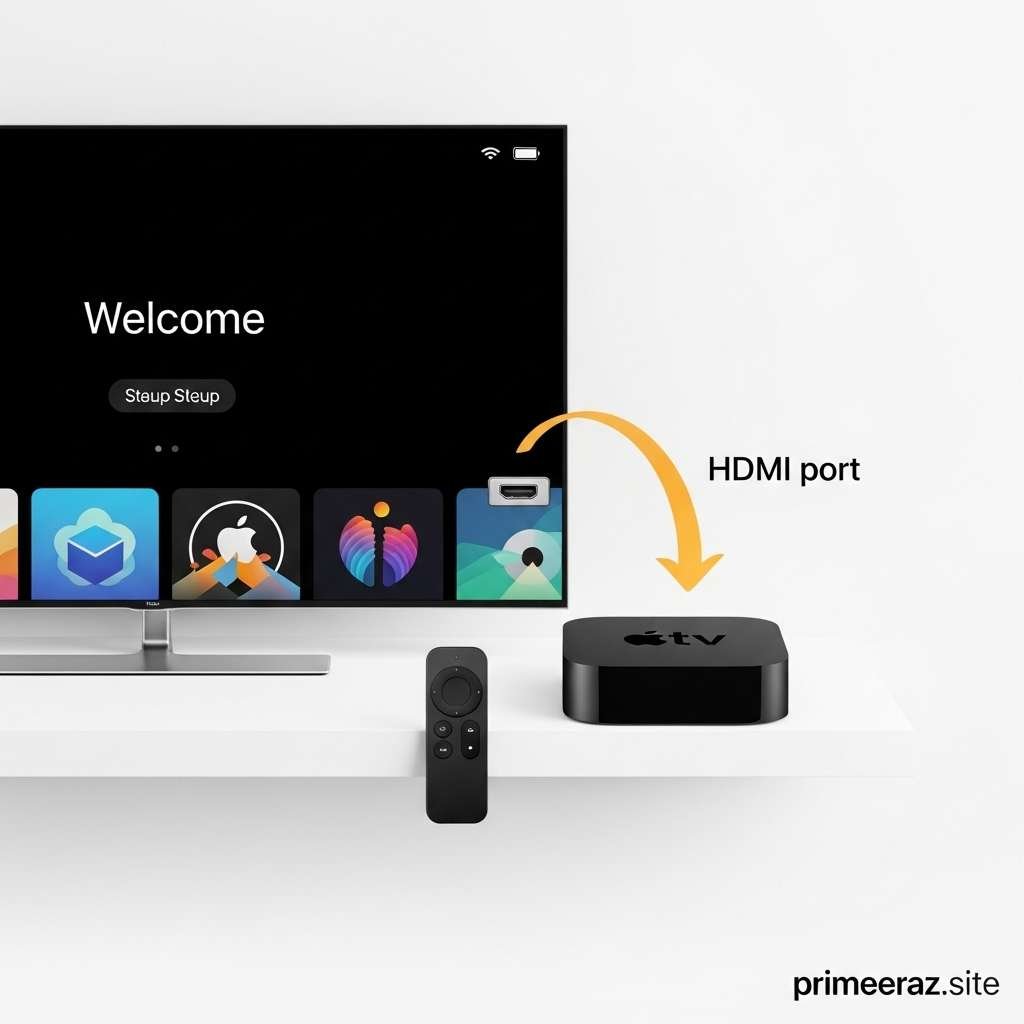
Step 1: Connect Your Apple TV
- Plug your Apple TV into a power outlet.
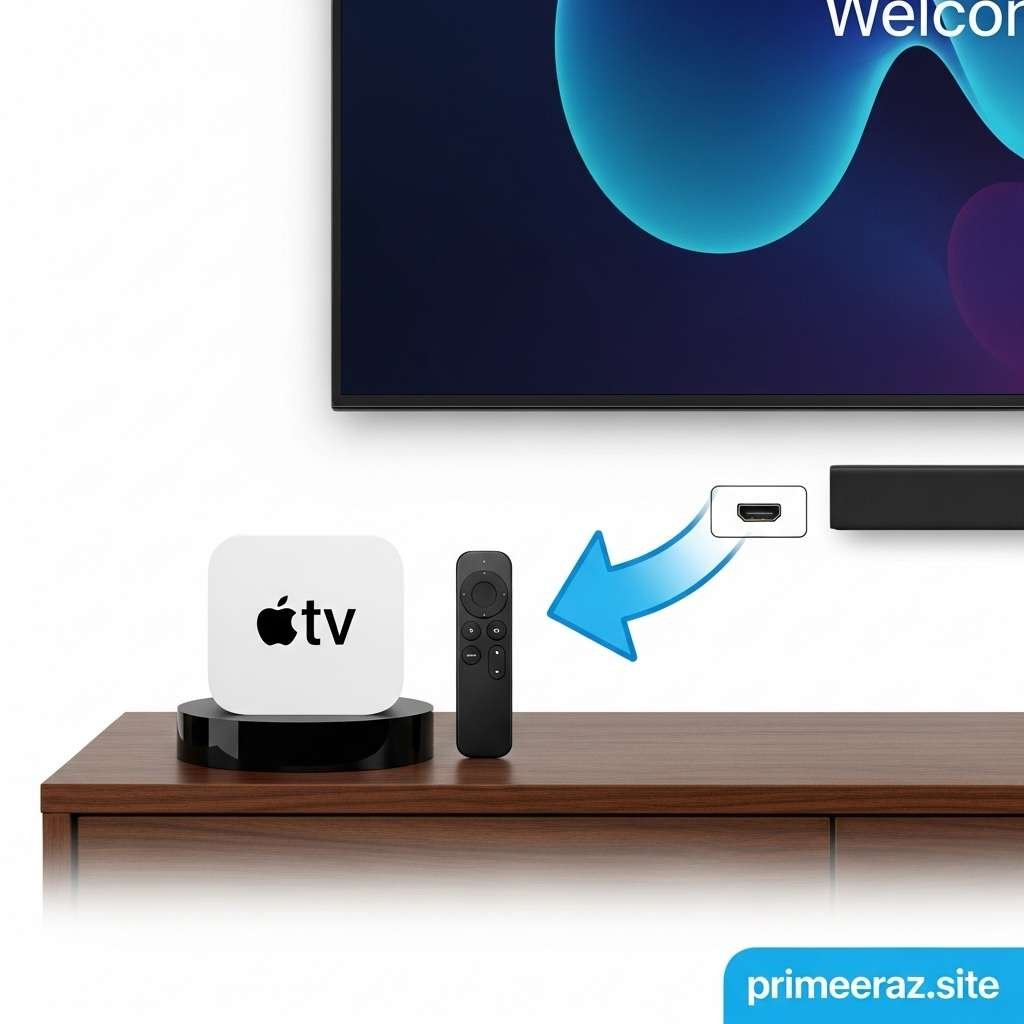
- Connect it to your TV using an HDMI cable.
- Turn on your TV and select the correct HDMI input.
- If using Ethernet, connect the cable from your router to Apple TV.
Once powered, you should see the Apple logo on your TV screen.
Step 2: Pair the Apple TV Remote
- Hold the remote close to the Apple TV.
- Press the Menu or Back button to pair the remote automatically.
- Follow the on-screen prompts to complete pairing.
- If pairing fails, replace the remote battery or try using another remote temporarily.
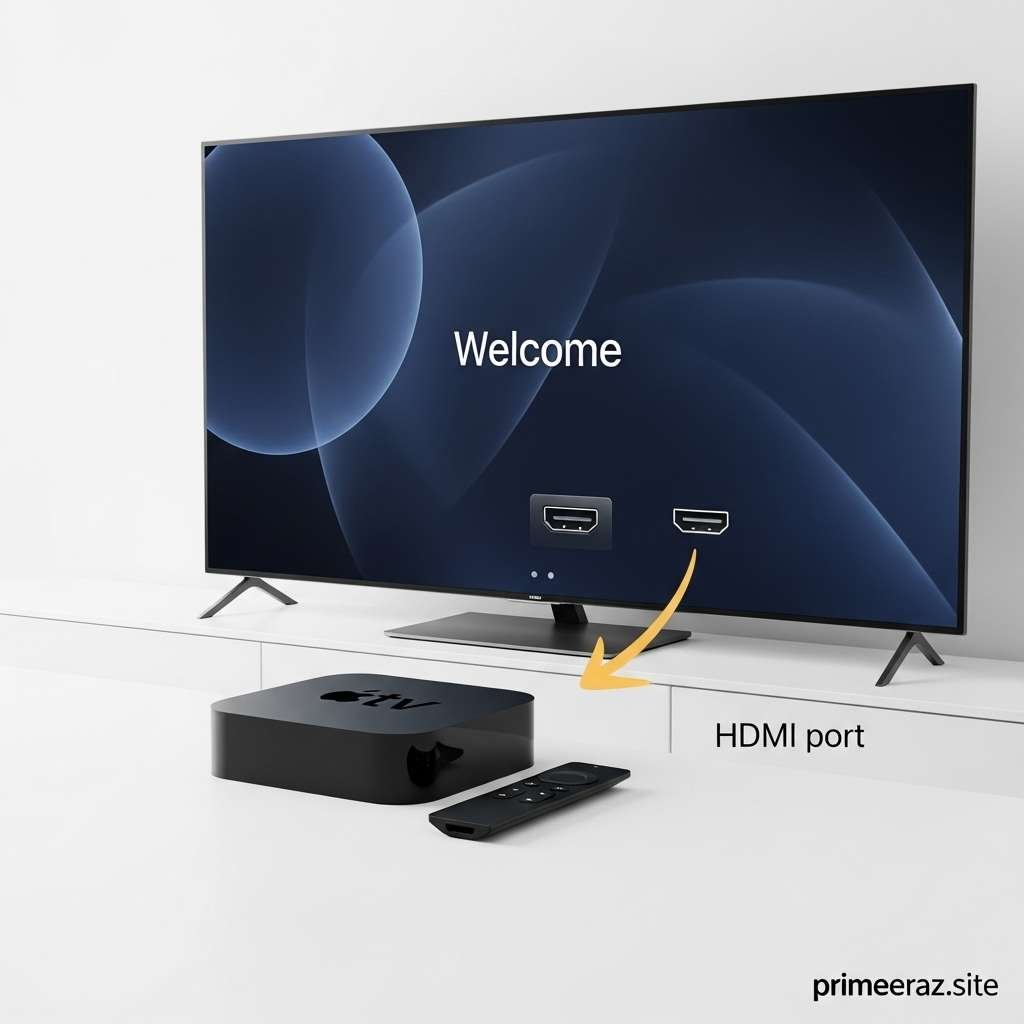
Step 3: Configure Settings
- Select your language and region.
- Connect to Wi-Fi by selecting your network and entering the password.
- Sign in with your Apple ID or create one if you don’t have one.
- Enable features like Location Services, Siri, and Screen Time as desired.
Step 4: Update Your Apple TV Software
- Navigate to Settings > System > Software Updates.
- Select Update Software to ensure you have the latest version.
- This is important to access new features, apps, and security patches.
Step 5: Customize Your Apple TV
- Install apps: Use the App Store to download streaming services like Netflix, Disney+, Hulu, or Apple TV+.
- Arrange apps: Drag and drop to organize your apps on the home screen.
- Set up HomeKit: If you have smart home devices, integrate them through the Apple TV for remote control.
- Enable AirPlay: Allows you to stream content from iPhone, iPad, or Mac to your TV.
Step 6: Using Your Apple TV
- Press the Home button to access the main menu.
- Use Siri for voice commands: search shows, open apps, control playback.
- Explore Apple TV Channels for subscription services without additional apps.
- Adjust display, audio, and accessibility settings from Settings > Video and Audio.
Tips for a Smooth Setup
- Keep your Apple TV close to your Wi-Fi router for strong signal strength.
- If using a universal remote, follow Apple’s instructions for pairing.
- Restart the Apple TV if it becomes unresponsive (Settings > System > Restart).
- Consider connecting an Ethernet cable for more stable streaming if Wi-Fi is slow.
FAQs
1. Do I need an Apple ID to use Apple TV?
Yes, an Apple ID is required to download apps, purchase content, and use iCloud features.
2. Can I use Apple TV without Wi-Fi?
Yes, using Ethernet is an alternative, but internet is required to stream content and download apps.
3. How do I reset Apple TV if something goes wrong?
Go to Settings > System > Reset and follow the on-screen instructions.
4. Can I control Apple TV with my iPhone?
Yes, the Apple TV Remote app allows full control from your iPhone or iPad.
5. How do I update apps on Apple TV?
Open the App Store, navigate to Purchased, and select Update All to keep your apps current.
Conclusion
Setting up Apple TV is simple when you follow the steps above. From connecting to your TV and pairing the remote to configuring settings, installing apps, and integrating smart home devices, you can enjoy all the features Apple TV offers. Once set up, you’ll have access to streaming, gaming, and smart home control — making your TV experience more connected than ever.